A video trimmer built for a whole shoot, not one clip
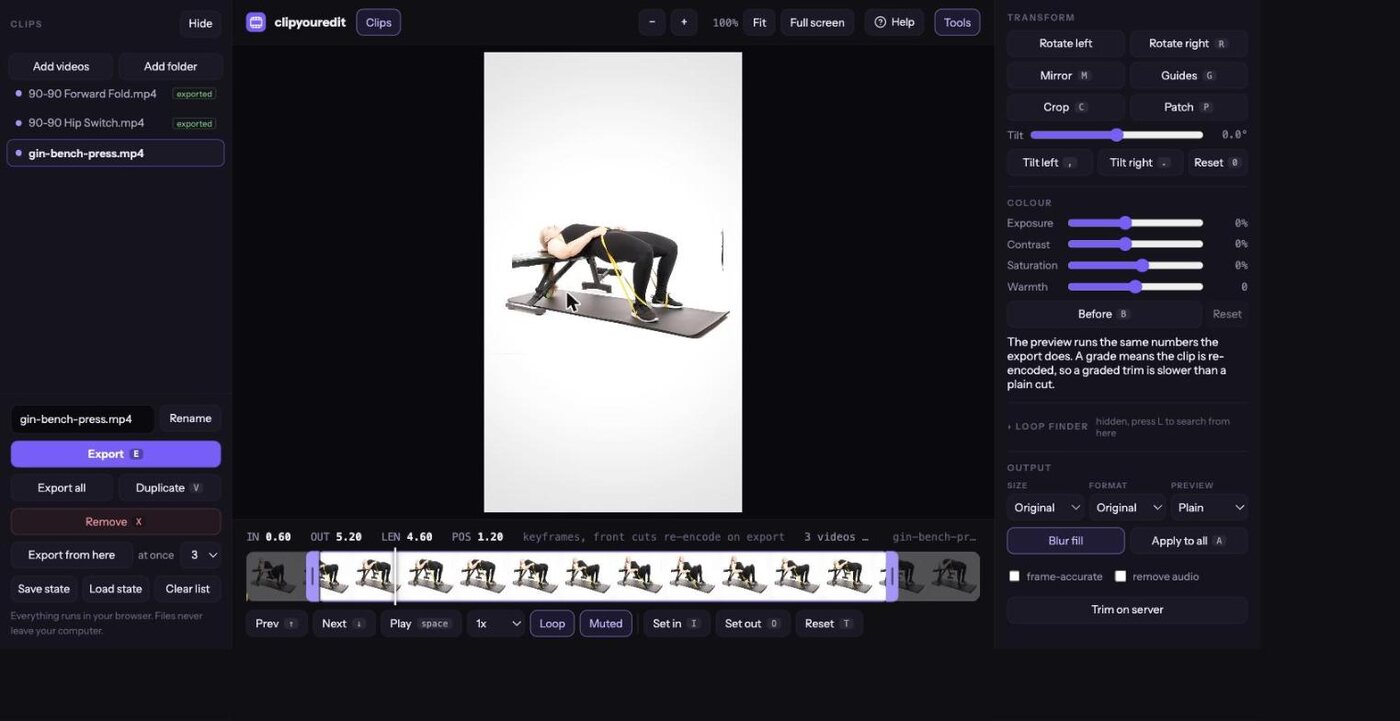
We film a lot. Every month another few hundred clips come off the card and every one of them needs the same four things: the dead air cut off both ends, a crop, the right aspect ratio and a sensible file name. We could not find a tool that did that well for a folder at a time, so we built one. It is free, it runs in your browser, and your files never leave your machine.
It lives at clipyouredit.com. No sign-up, nothing to install.
Why we built it
Your Move films its own exercise library. That means studio days that end with a memory card full of takes, each one needing a trim, and then the same trim again next month.
The desktop editors are built around a timeline and a project file, which is the wrong shape for two hundred separate clips. The free online ones want to upload every file first, which is slow, and they cap the length or stamp a watermark on the result. The command line does the job but nobody wants to eyeball two hundred in and out points in a terminal.
So we wrote the thing we wanted: a list of clips, a picture big enough to judge, keyboard shortcuts for in and out, and an export that runs the whole batch while we make coffee. It has been our daily tool for months. It is free, and if it saves you an afternoon, that is the whole point.
Open a whole folder, not one file at a time
Point it at the folder your camera wrote and every MP4 and MOV in it becomes a clip in the list. Trim one, press the down arrow, trim the next. Each clip keeps its own in and out points, its own crop and its own output name.
When you are done, Export all runs the batch, up to four clips encoding at the same time. Clips you already exported carry a badge and get skipped, so running the batch again only produces what you added or changed since. Close the tab and come back: the folder and every setting are still there.
Cut without re-encoding, or on the exact frame
A cut that lands on a keyframe copies the video stream straight through. Nothing is re-compressed, quality is identical to the source, and a 4K clip is done in about a second. The editor reads the keyframe index out of the file and marks them under the timeline so you can see where the free cuts are.
When the cut has to be on a specific frame, switch on frame-accurate and it re-encodes the first part instead. Same result as an editor, without the project file.
How to trim a video →Crop, rotate, mirror and straighten
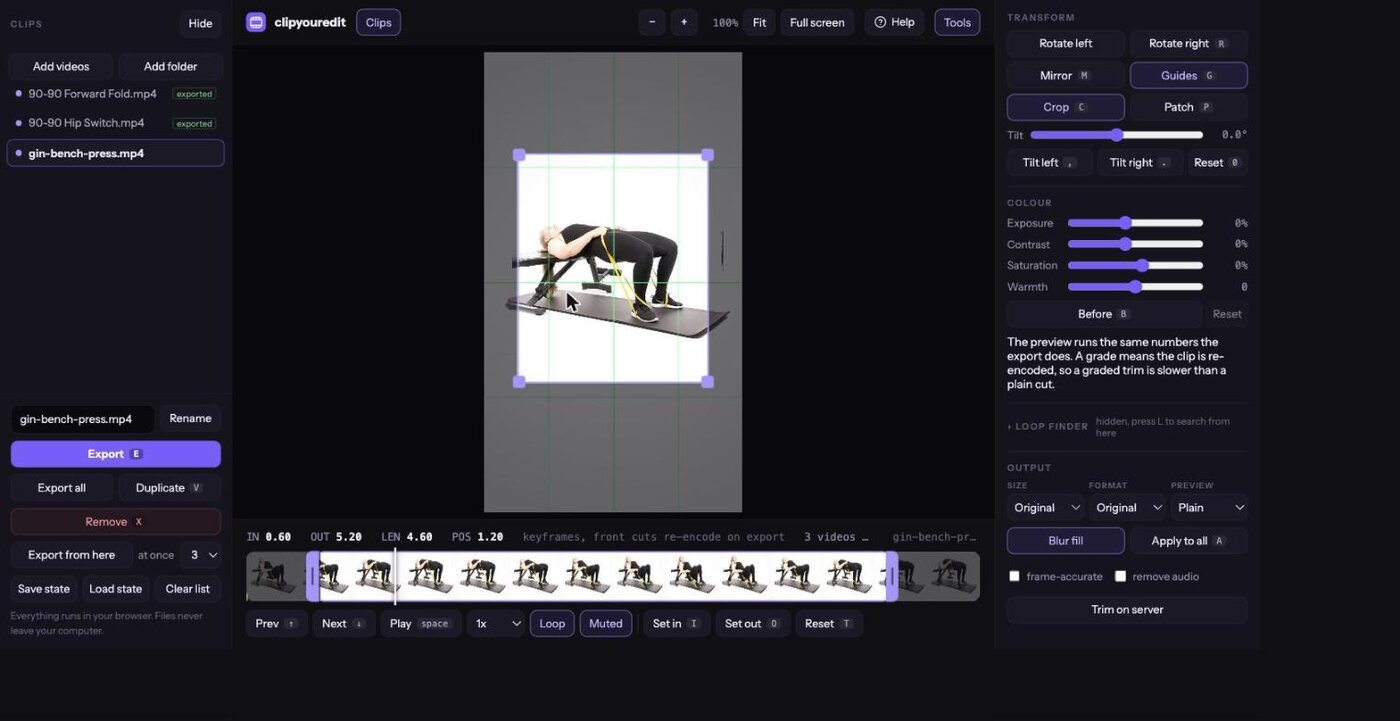
Drag the crop box on the picture, rotate in 90 degree steps, mirror a selfie clip, or nudge the tilt slider when the tripod was not quite level. Guides overlay thirds and centre lines while you work.
Pick 9:16, 1:1 or 16:9 as the output and anything that does not fit gets a blurred copy of the frame behind it instead of black bars.
Even out the colour
Exposure, contrast, saturation and warmth, on the clip or on the whole batch at once. It is not a grading suite, it is the four knobs that fix a shoot where the light drifted between takes.
What you see is what you get: the preview and the export run the same numbers, measured to within half a value out of 255 on a real frame. Hold Before to flip back to the original.
Find the loop point
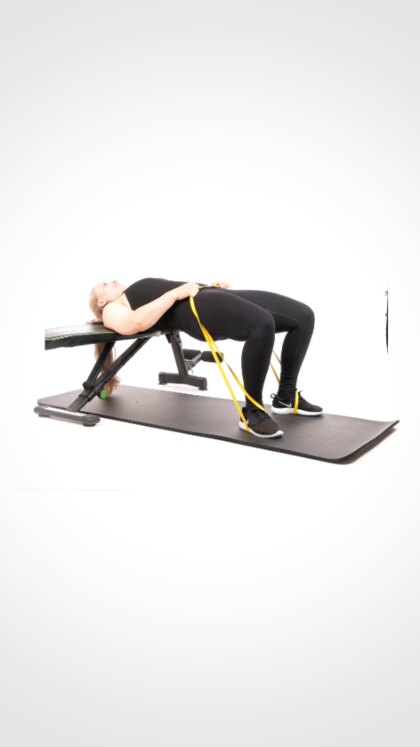
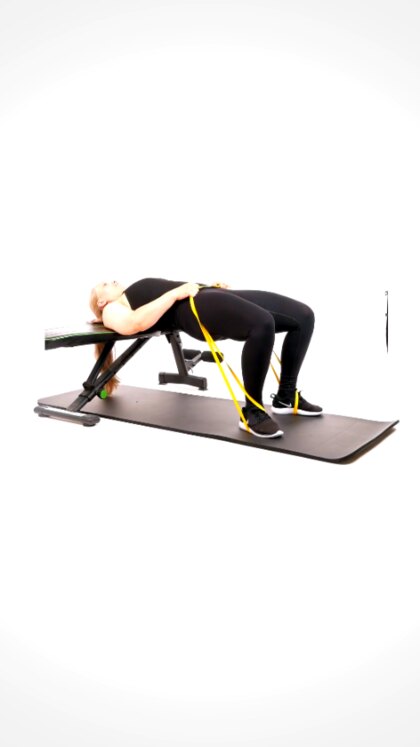
For a clip that has to run on repeat, the loop finder compares candidate end frames against the first frame and tells you which cut point loops cleanest. It shows the IN frame, the OUT frame and the difference between them side by side, so you can judge it yourself instead of trusting a number.
How to loop a video →Paint out what should not be in frame
A cable, a seam in the backdrop, a light stand at the edge. Drag a shape over it and the patch fills it in by cloning nearby pixels, blurring it into the background or covering it with a flat colour. Copy the patch to the next clip, or to the next fifty, when the same thing is in every take.
See it in the phone frame before you export
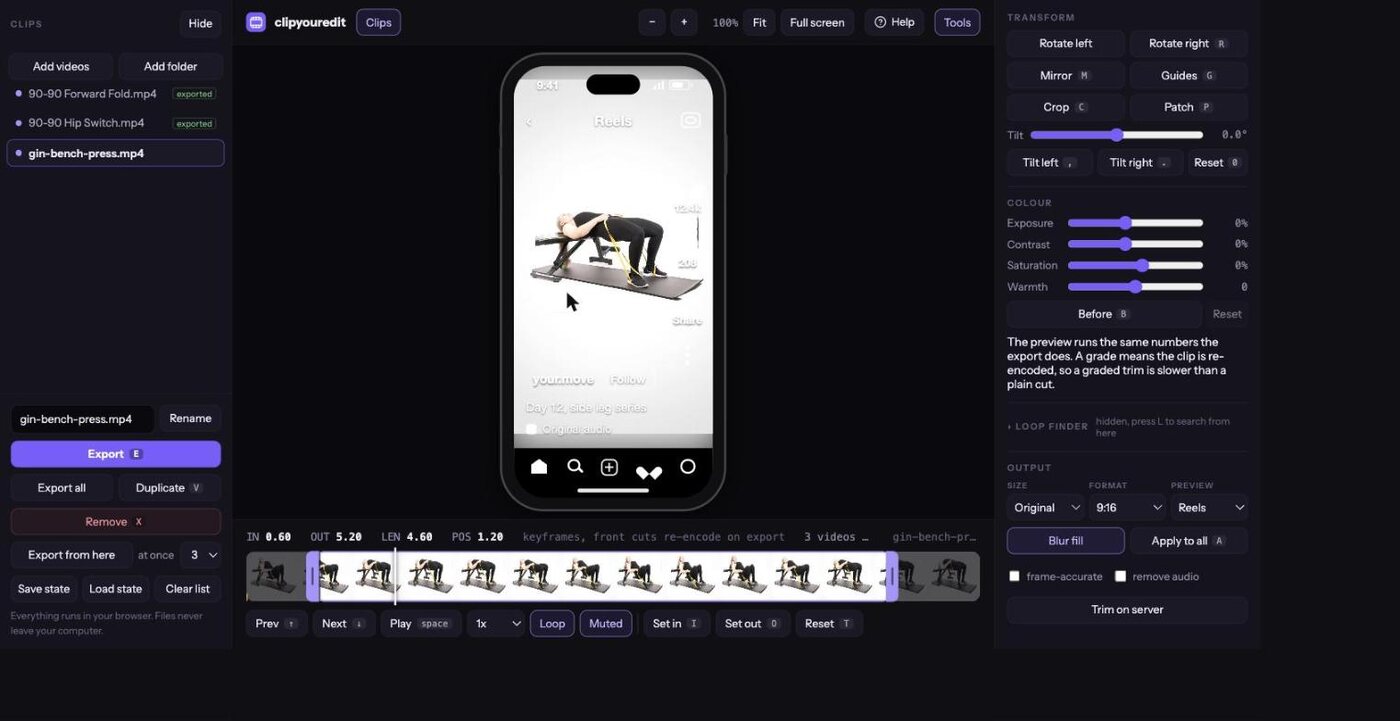
Switch the preview to Reels, Stories, Shorts or YouTube and the picture sits inside that app with its real chrome over it. You find out that the caption bar eats your subject before you export ninety clips, not after.
Your files stay on your machine
The whole thing runs in the browser. There is no account, no upload and no queue: the video engine is compiled to WebAssembly and works on the file straight off your disk, so a 4 GB clip is not a 4 GB upload.
There is one exception, and it is opt-in. Trim on server sends the clip to our box and cuts it there with native ffmpeg, for when the machine you are on is slow or the file is bigger than the browser will hold. That job is deleted as soon as you download it, and at the latest two hours later.
Tell us what is missing
It is free and it is going to stay free, so the only thing we want back is a note when something breaks or when the one feature you need is not there. That is how the colour sliders, the loop finder and the patch tool got built in the first place.
Questions
Is it really free?
Yes. No account, no trial, no watermark and no export limit. We built it for our own shoots and it costs us almost nothing to leave it up, because the work happens in your browser rather than on our servers.
What is the catch?
There is none on the tool itself. We make our money from the Your Move APIs, which serve exercise, nutrition and recipe data to fitness apps. If you are building one of those, that is where we would love to talk. If you are here to cut fifty clips and leave, that is fine too.
Does trimming lose quality?
Not when the cut lands on a keyframe: the video stream is copied through untouched. If you ask for a frame-accurate cut, a crop, a rotation or a grade, that clip is re-encoded at a high quality setting, which is a small, usually invisible loss.
What formats does it take?
MP4, MOV, M4V, MKV, WebM, AVI and the usual camera containers. Everything comes out as MP4 with H.264 video, which plays everywhere.
How many clips can it handle at once?
We regularly run it on a full shoot day, a few hundred clips from the card, and it keeps the trim points for all of them. The export runs one to four at a time depending on how many cores you want to give it.
Does it work on a phone?
The editor works on a tablet and will load on a phone, but trimming a batch is a job for a keyboard and a big picture. iPhone users cutting a single clip are usually better off in the Photos app, which one of the guides walks through.
Building something in fitness?
The trimmer is a side effect of our real work: filming and licensing exercise content. The Your Move Exercise API serves that library, 2,000+ movements with video, instructions and muscle groups, plus nutrition and recipe data, to fitness apps that would rather not film anything themselves.